For 3D Print, Autodesk Fusion360 Personal
Turning the SlideMate Icon into a 3D Print: My Journey with Fusion 360
Introduction
As the creator of SlideMate, I’ve always loved seeing its icon on screen. But I started wondering: what if I could hold it in my hand? That thought led me to Autodesk Fusion 360 (personal use license) and eventually to my very first 3D print of the SlideMate icon. This post is both a story of my experience and a step‑by‑step guide for anyone curious about doing something similar.
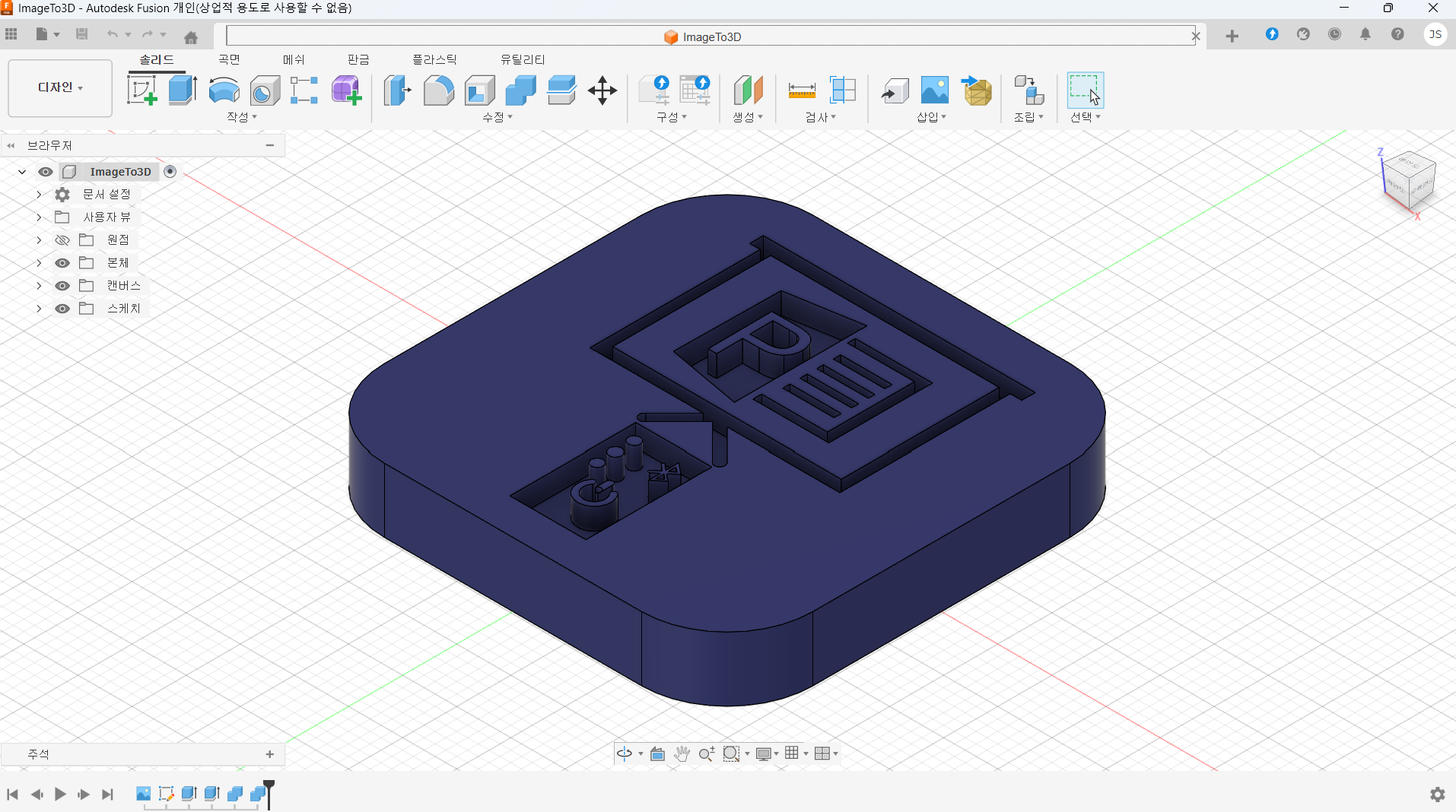
Step 1: Importing the Icon as a Canvas
The journey began with the SlideMate icon itself. In Fusion 360, I imported the image as a Canvas. This was a crucial step because it gave me a direct reference inside the workspace. Having the icon visible made it much easier to trace shapes and stay faithful to the original design.
Step 2: Sketching the Outline
With the Canvas in place, I started sketching. I carefully traced the main shapes of the icon — the square base with rounded corners and the recessed details. This part felt almost like drawing, but with the precision of CAD tools.
Step 3: Extruding into 3D
Once the sketches were ready, I used extrusion to give them depth. Watching the flat lines rise into a solid form was exciting — it was the moment the SlideMate icon started becoming a real object.
Step 4: Adding Details
I didn’t stop at the basic shape. Rounded edges, recessed symbols, and geometric features were added to capture the personality of the icon. Fusion 360’s Solid and Modify tools helped me refine the design until it looked just right.
Step 5: Preparing for Printing
When the model was complete, I exported it as an STL file. In my slicing software, I set the layer height, infill density, and material type. I made small adjustments to ensure the model would print smoothly — no weak points, no unnecessary overhangs.
Step 6: The Printing Experience
Finally, the printer took over. Layer by layer, the SlideMate icon came to life. Watching the familiar design emerge in physical form was incredibly rewarding. The final print had crisp details and a satisfying weight — proof that the idea had worked.
Reflections
Looking back, the key was starting with the Canvas import. Without that, it would have been much harder to stay true to the original icon. This project taught me how digital identity can cross into the physical world, and it gave me a new appreciation for the creative potential of CAD and 3D printing.
Conclusion
From a simple image to a tangible object, this project was both personal and technical. If you’ve ever thought about turning your own software icon or logo into a 3D print, I highly recommend giving it a try. It’s a journey that blends storytelling with design — and the result is something you can proudly hold in your hand.